Latest News

Showing posts with label Tricks. Show all posts

How to create a Password Protected Folder using a Batch Script

Keeping a Password Protected Folder make your data and files in the folder safe . As there are many softwares through which you can lock a folder but I there are many disadvantages in those softwares . These softwares consume more RAM where as this batch script doesn't take much memory to execute . The software needs to get installed and then it is used , But in Batch file script a simple procedure is used. So lets get started.


 Create a Password protected Folder

Follow the below steps to create a Password Protected folder .
  • First you need to create a Folder where you can host the files which are need to be protected .

Now navigate to that folder , open a text file in it. ( you can do this with right click--->New--->Text Document ).

Now copy the below script and paste it in the Text file

cls

@ECHO OFF

title Folder Private

if EXIST "HTG Locker" goto UNLOCK

if NOT EXIST Private goto MDLOCKER

:CONFIRM

echo Are you sure you want to lock the folder(Y/N)

set/p "cho=>"
if %cho%==Y goto LOCK
if %cho%==y goto LOCK
if %cho%==n goto END
if %cho%==N goto END
echo Invalid choice.
goto CONFIRM
:LOCK
ren Private "HTG Locker"
attrib +h +s "HTG Locker"
echo Folder locked
goto End
:UNLOCK
echo Enter password to unlock folder
set/p "pass=>"
if NOT %pass%== UR_PASSWORD goto FAIL
attrib -h -s "HTG Locker"
ren "HTG Locker" Private
echo Folder Unlocked successfully
goto End
:FAIL
echo Invalid password
goto end
:MDLOCKER
md Private
echo Private created successfully
goto End
:End

    Next change the Password "Ur Password" to your desired password and save the file as anything.bat ( like mylock.bat) .


  • If the file is being saved then delete the text file which you have created .
  • Now you need to Run the batch file .bat file , to Run it you need to double click on it . 

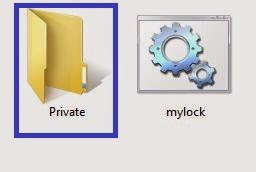
  • This batch file will create a Folder named Private . This the folder where you need to add the files and folders which are private or password protected .
  • Once you have finished adding all the files and images etc into the Private Folder then Run Batch file anything.bat again ( Just Double click on the .bat File ) .
  • Now a Black screen Command prompt window appears asking If you are sure you want to lock the folder . Now Press "Y" and hit enter to lock the folder .

  • Now the Folder Private disappears and your folder is hidden or password protected .

  • If you want to make the password protected folder Private a new windows pops asking to Enter password to Unlock Folder .

  • Now enter the same password which you have kept above , once you have entered the password Private folder reappears .If you have entered a wrong password the the window terminates .

Photoshop CS3 Shortcuts: PC

Here are many of Photoshop’s keyboard shortcuts. Some of them are the little known, hidden keystrokes! Download them as a PDF (nicely formatted single page that’s easily printed), or scroll down to the shortcut you need. Feel free to link to this page to share it with others! Enjoy...

Selecting
Draw Marquee from Center Alt-Marquee
Add to a Selection Shift
Subtract from a Selection Alt
Intersection with a Selection Shift-Alt
Make Copy of Selection w/Move tool Alt-Drag Selection
Make Copy of Selection when not in Move tool Ctrl-Alt-Drag Selection
Move Selection (in 1-pixel Increments) Arrow Keys
Move Selection (in 10-pixel Increments) Shift-Arrow Keys
Select all Opaque Pixels on Layer Ctrl-click on Layer Thumbnail (in Layers palette)
Restore Last Selection Ctrl-Shift-D
Feather Selection Ctrl-Alt-D or Shift-F6
Move Marquee while drawing selection Hold Space while drawing marquee
Viewing
Fit on Screen Double-click on Hand tool or Ctrl-0
100% View Level (Actual Pixels) Double-Click on Zoom Tool or Ctrl-Alt-0
Zoom in Ctrl-Space-Click or Ctrl-Plus(+)
Zoom out Alt-Space-Click or Ctrl-Minus(–)
Hide all tools and palettes Tab
Hide all palettes except Toolbox and Options bar Shift-Tab
Rotate through full screen modes F
Display menu bar when viewing in full-screen mode Shift-F (then press F to hide)
Scroll image left or right in window Ctrl-Shift-Page Up/Down
Jump/Zoom to part of Image Ctrl-drag in Navigator palette
Toggles layer mask on/off as rubylith \
Layer Shortcuts
Create new layer Ctrl-Shift-N
Select non-contiguous layers Ctrl-Click layers
Select contiguous layers Click one layer, then Shift-Click another layer
Delete Layer Delete key (while in the Move tool)
View contents of layer mask Alt-Click layer mask icon
Temporarily turn off layer mask Shift-Click layer mask icon
Clone layer as you move it Alt-Drag
Find/Select layer containing object Right-Click on the object w/Move tool
Change layer opacity Number pad keys (w/Move tool selected)
Cycle down or up through blend modes Shift-Plus(+) or Minus(–)
Change to a specific blend mode (w/Move tool) Shift-Alt-letter (ie: N=Normal, M=Multiply. etc.)
Switch to layer below/above current layer Alt-[ or Alt-]
Type Shortcuts
Select all text on layer Double-Click on T thumbnail in Layer palette
Increase/Decrease size of selected text by 2 pts Ctrl-Shift->/<
Increase/Decrease size of selected text by 10 pts Ctrl-Shift-Alt->/<
Increase/Decrease kerning/tracking Alt-Right/Left Arrow
Align text left/center/right Ctrl-Shift-L/C/R
Painting
Fill selection with background color Ctrl-Backspace
Fill selection with foreground color Alt-Backspace
Fill selection with foreground color using Lock Transparent Pixels Shift-Alt-Backspace
Fill selection with source state in History palette Ctrl-Alt-Backspace
Display Fill dialog box Shift-Backspace
Sample as background color Alt-Click w/Eyedropper tool
To get Move tool While in any painting/editing tool-hold Ctrl
To get Eyedropper with Paint tools Alt
Change paint opacity (with Airbrush OFF) Number keys
Change paint opacity (with Airbrush ON) Shift-Number keys
Change Airbrush flow (with Airbrush ON) Number keys
Change Airbrush flow (with Airbrush OFF) Shift-Number keys
Cross-Hair Cursor Any painting/editing tool-turn Caps Lock on
Decrease/Increase Brush Size [ or ]
Decrease/Increase Hardness of Brush Shift-[ or Shift-]
Switch between preset Brushes < or >
Open Brushes pop-up palette Right-Click in Image window
Erase to History palette’s source state Alt-Eraser
Cycle down or up through blend modes Shift-Plus(+) or Minus(–)
Change to a specific blend mode Shift-Alt-letter (ie: N=Normal, M=Multiply, etc.)
Create fixed color target from within a dialog box Shift-Click in image window
Delete fixed color target Alt-Click on target with Color Sampler tool
Create new spot-color channel from current selection Ctrl-Click on New Channel button in Channels palette
Pen Tool Shortcuts
To get Direct Selection tool while using Pen Ctrl
Switch between Add-Anchor and Delete-Anchor Point tools Alt
Switch from Path Selection tool to Convert Point tool when pointer is over anchor point Ctrl-Alt
To Select a whole path w/Direct Selection tool Alt-click
Convert path to a selection Ctrl-click on path name (in Paths palette)
Palette Shortcuts
Show/Hide Brushes palette F5
Show/Hide Color palette F6
Show/Hide Layers palette F7
Show/Hide Info palette F8
Show/Hide Actions palette Alt-F9
Open Adobe Bridge Ctrl-Alt-O
Other Shortcuts
Switch between open documents Ctrl-Tab
Undo or Redo operations beyond last one Ctrl-Alt-Z/Ctrl-Shift-Z
Apply Last Filter Ctrl-F
Opens Last Filter Dialog Box Ctrl-Alt-F
Hand Tool Spacebar
Reset Dialog Box Hold Alt, Cancel turns into Reset Button, Click it
Increase/Decrease value (in any option field) by 1 unit Up/Down Arrow
Increase/Decrease value (in any option field) by 10 units Shift-Up/Down Arrow
Replay last Transformation Ctrl-Shift-T
Measure Angle between Lines (Protractor Function) After ruler is drawn, Alt-Drag end of line with Ruler Tool
Move Crop Marquee while creating Hold Space while drawing
Snap Guide to Ruler ticks Hold Shift while dragging
Highlight Fields in Options bar (n/a for all tools) Enter
Don’t Snap object edge while moving Hold Control while dragging
Tools
V Move
M Rectangular Marquee, Elliptical Marquee
L Lasso tools
W Quick Selection, Magic Wand
C Crop
K Slice tools
J Spot Healing Brush, Healing Brush, Patch, Red Eye
B Brush, Pencil, Color Replacement
S Clone Stamp, Pattern Stamp
Y History Brush, Art History Brush
E Eraser tools
G Gradient, Paint Bucket
R Blur, Sharpen, Smudge
O Dodge, Burn, Sponge
P Pen tools
T Type tools
A Path Selection, Direct Selection
U Rectangle, Rounded Rectangle, Ellipse, Polygon, Line, Custom Shape
N Notes tools
I Eyedropper, Color Sampler, Ruler, Count
H Hand
Z Zoom
X Switch Foreground and Background colors
D Default colors
Q Quick Mask Mode
F Cycle through screen modes
To switch between all tools within groups, add the Shift key to the letters above
For example, to switch between rectangular and elliptical marquee hit Shift-M

Please like our facebook page and keep Visiting Our Blog .

Funny Computer Tricks

Want to learn funny computer tricks? In this post I’ll show you 8 funny computer tricks .Enjoy!

1. Word Funny Trick

Open microsoft word and type =Rand(200,99) and press Enter. Enjoy in magic!

2. Notepad Funny Trick

Open your notepad and increase font size to 72 and change the the font to “Windings”.

Type your name in Capital later and look what are you see there.

3. Folder With The Name con

Try to make folder on windows with the name con. You won’t be able to make it.

4. Funny javascript trick ;)

Copy the below code in web browser address bar and press enter

javascript:function Shw(n) {if (self.moveBy) {for (i = 35; i > 0; i--) {for (j = n; j > 0; j--) {self.moveBy(1,i);self.moveBy(i,0);self.moveBy(0,-i);self.moveBy(-i,0); } } }} Shw(6)
You’ll see that your browser shaking :) (in some browsers it will not work)

5. Make Folders Invisible In Windows

1. Right click on the desktop>New>Folder
2.Remove the name and with the NUMPAD type 0160 while holding ALT
-Now your folder should appear unnamed and when we got that solved, we have to make the icon itself invisible to the eye:
3.Right click on the folder>Properties
4.Click the Customize tab and then Change icon
5.Just scroll a little bit and you can find here is a transparent icon
And voila; your folder is now invisible…(*just don’t forget where you put it)
Here’s a video instructional if you find it easier to follow the steps this way:

6. The “Keyboard not present” computer trick

Just look in the back of your PC unit, find the mouse and the keyboard and simply switch their places. This way, when a person boots the computer, it will show an error message, telling him that no keyboard is present. But strangely, the wires aren’t ripped out…
(This only works on PS/2 keyboards & mice)

7. The randomkey funny computer trick

Just download randomkey app that types a random key every minute , from this LINK. To disable it, restart your PC

8. How to Delete Friend’s Hard Disk -Fakely

Here is a funny trick which you will find amazing and frighten your friend with this prank.
1)Download Fake delete.zip and unzip the files.
2)Now open the folder and open the file fakedel.exe. You can see that the deleting seems so realistic. But this is just fake and nothing happens to your computer.
3)Now rename this file with xyz.exe and paste this file on your friend’s desktop or Email it to him/her with some interesting message so that he/she will curiously open the file.
To Stop Fakedel.exe go to Taskbar > TaskManager > fakedel.exe > End Process

Souece -Hack spc